
How to fulfill an order in the moment and how to avoid it in the future when a new order in a Online Store with Mobile Ordering (Dine-in) is unable to accepted. Click to view the corresponding paragraph:
- Item Out of Stock or Insufficient Quantity
- Unable to Find The Item
- Unable to Find The Table
- More than 4 Orders on One Table
- Failed to Accept Orders Automatically
- More than 1,000 Orders in Order Accepting Window
Item Out of Stock or Insufficient Quantity
Reason
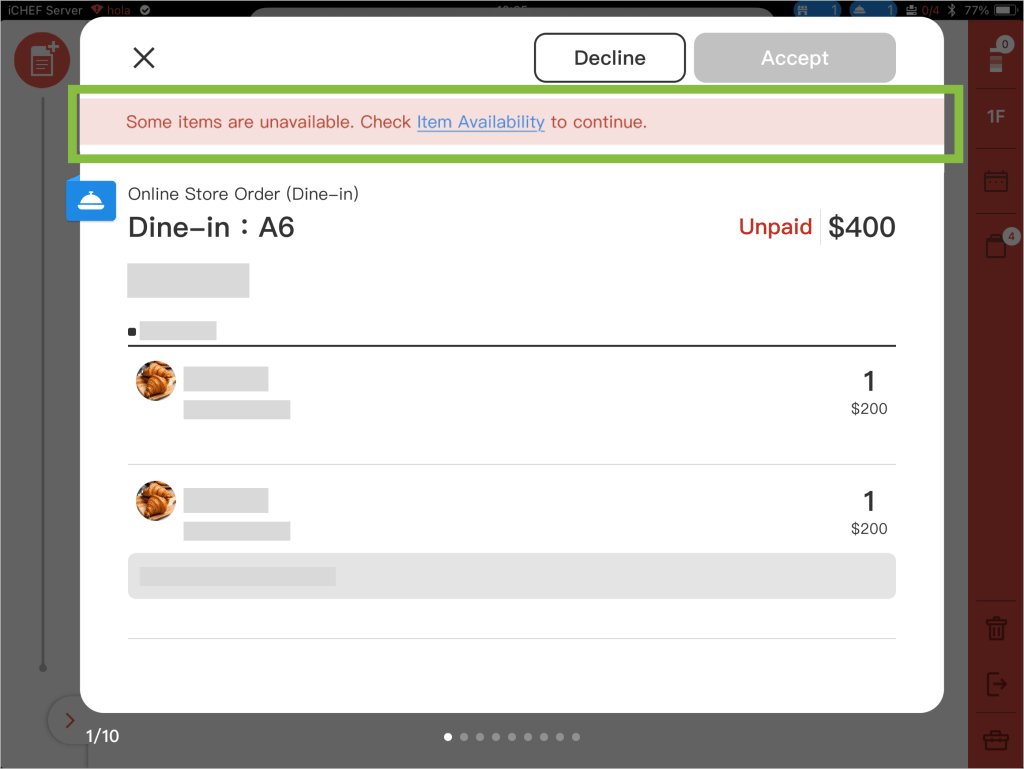
In iCHEF POS > Toolbox > Item Availability , the quantity of the item(s) in this order is less than the [Available Quantity], or the status is set to [Online Off] or [Sold Out], making it unavailable for fulfillment.
Solution
Please evaluate based on your current store inventory:
- If stock is still available: Go to [Toolbox > Item Availability] to update the quantity or status. Once updated, you can accept the order.
- If stock is indeed insufficient: Decline the order, or contact the customer to revise their selection.
Unable to Find The Item
Reason
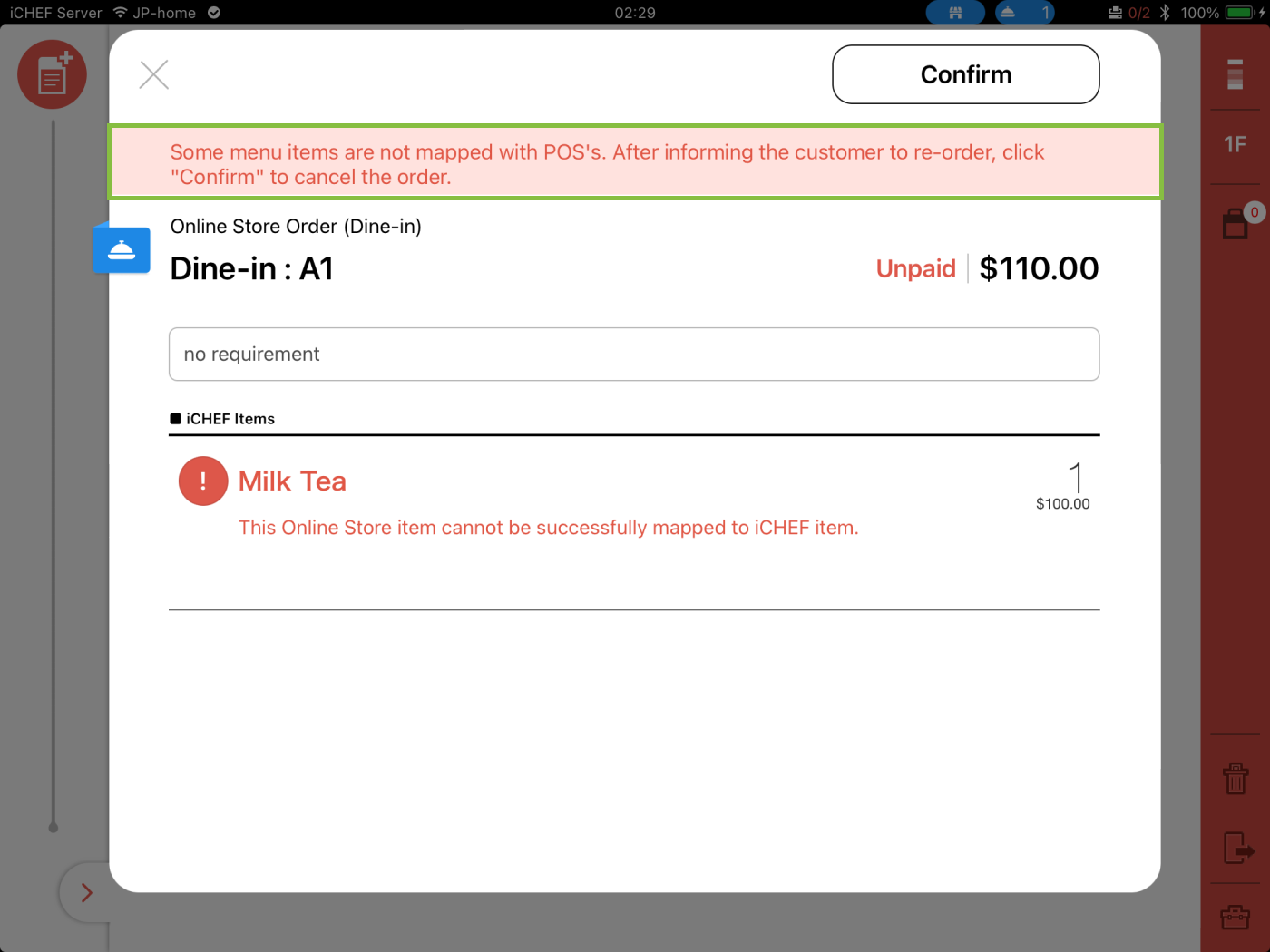
If you conduct [Update menu] on iCHEF POS, and a customer sends an order at the same time, the system might be unable to find the item you’re editing.
Solution
Please inform the customer that the item selected isn’t available and the system has already declined the order. Ask the customer to redo the order.
Unable to Find The Table
Reason
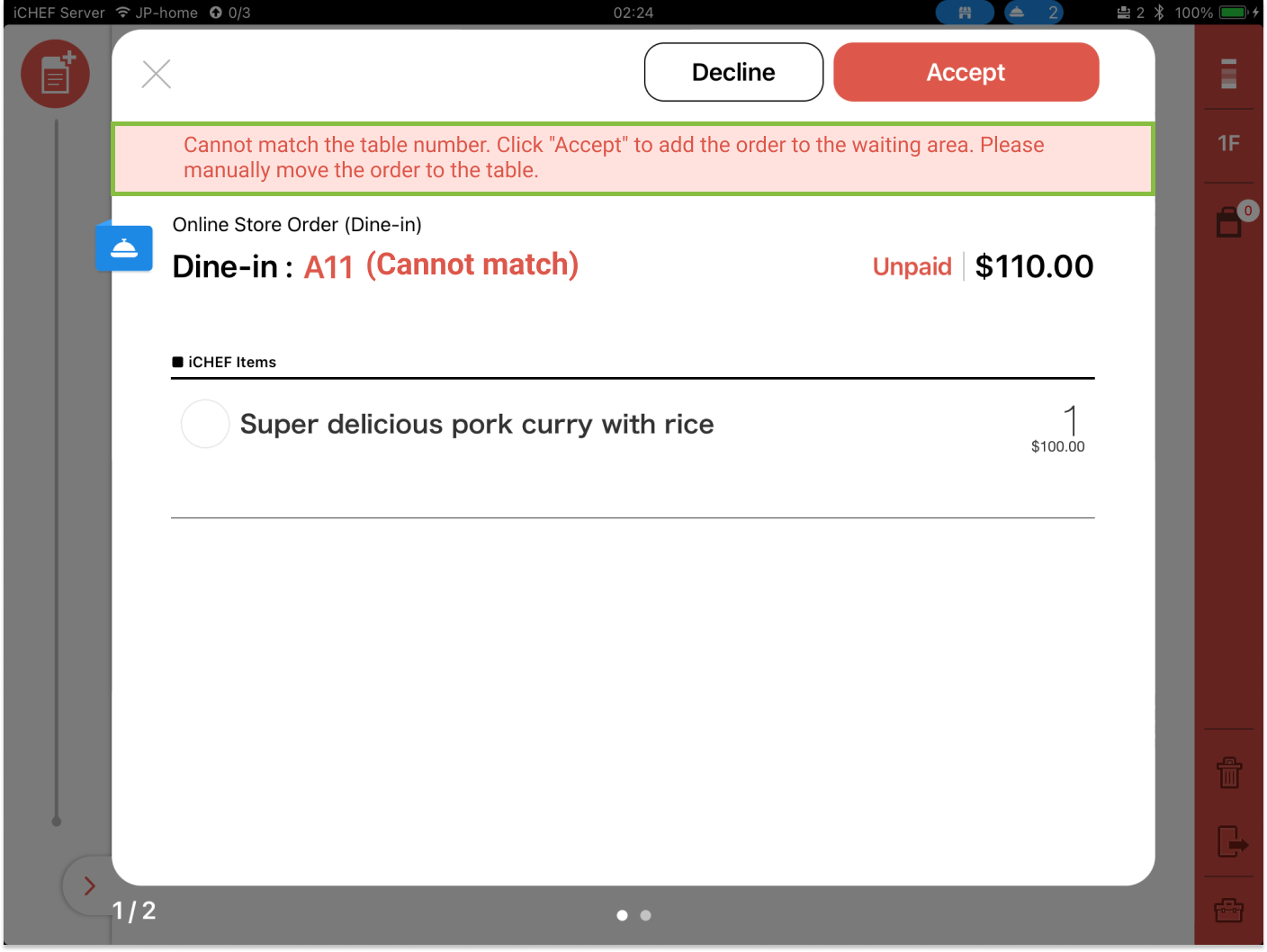
After you accept online dine-in orders, orders will be created at specified tables on iCHEF POS. If a QR Code indicates a table that hasn’t been updated to iCHEF POS, there will be a table corresponding error.
Solution
Tap the [call bell] icon to open order accepting window, and accept the order manually. The order will be added to [customer in line]. Drag the order to the correct table.
More than 4 Orders on One Table
Reason
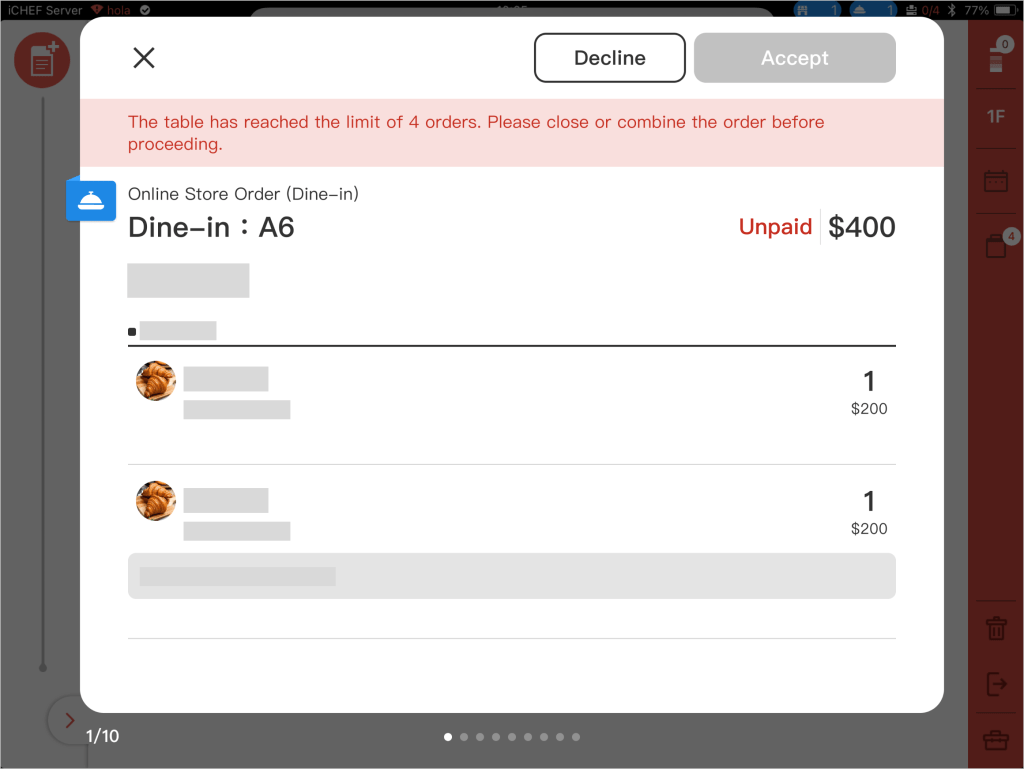
You can create maximum 4 orders per table. If the customer keep sending new orders from the same table, you may be unable to accept new orders.
Solution
- Close order accepting window
- Close paid orders, or merge unpaid orders on the same table
- Tap the [call bell] icon to open order accepting window
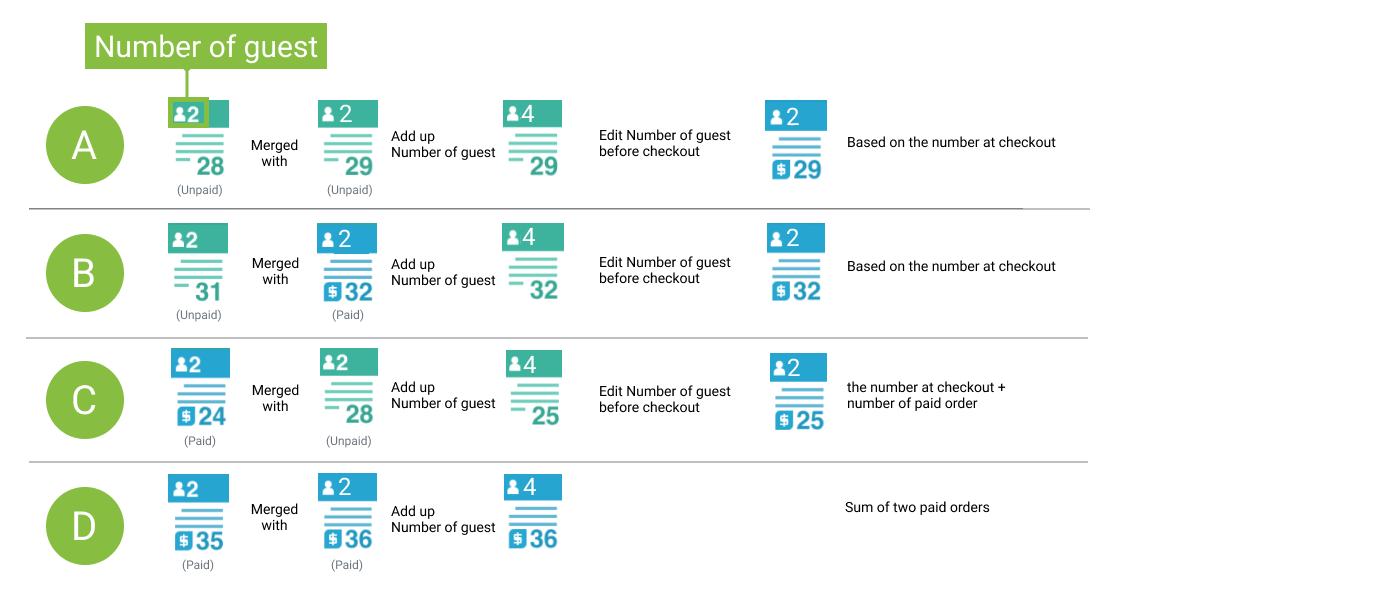
Number of Customers Changes When Orders Merged
When orders are merged, the number of customers will be added up. You can correct the number of customers in order details before checkout.
- A:Merge two unpaid orders
- B:Merge an unpaid order with a paid order
- C:Merge a paid order with an unpaid order
- D:Merge two paid orders
New Feature! Customers can now add new items to their original order. The new items added will be merged to the existing order automatically. No more need to merge orders manually! Learn more about Add New Item to Existing Order
Failed to Accept Orders Automatically
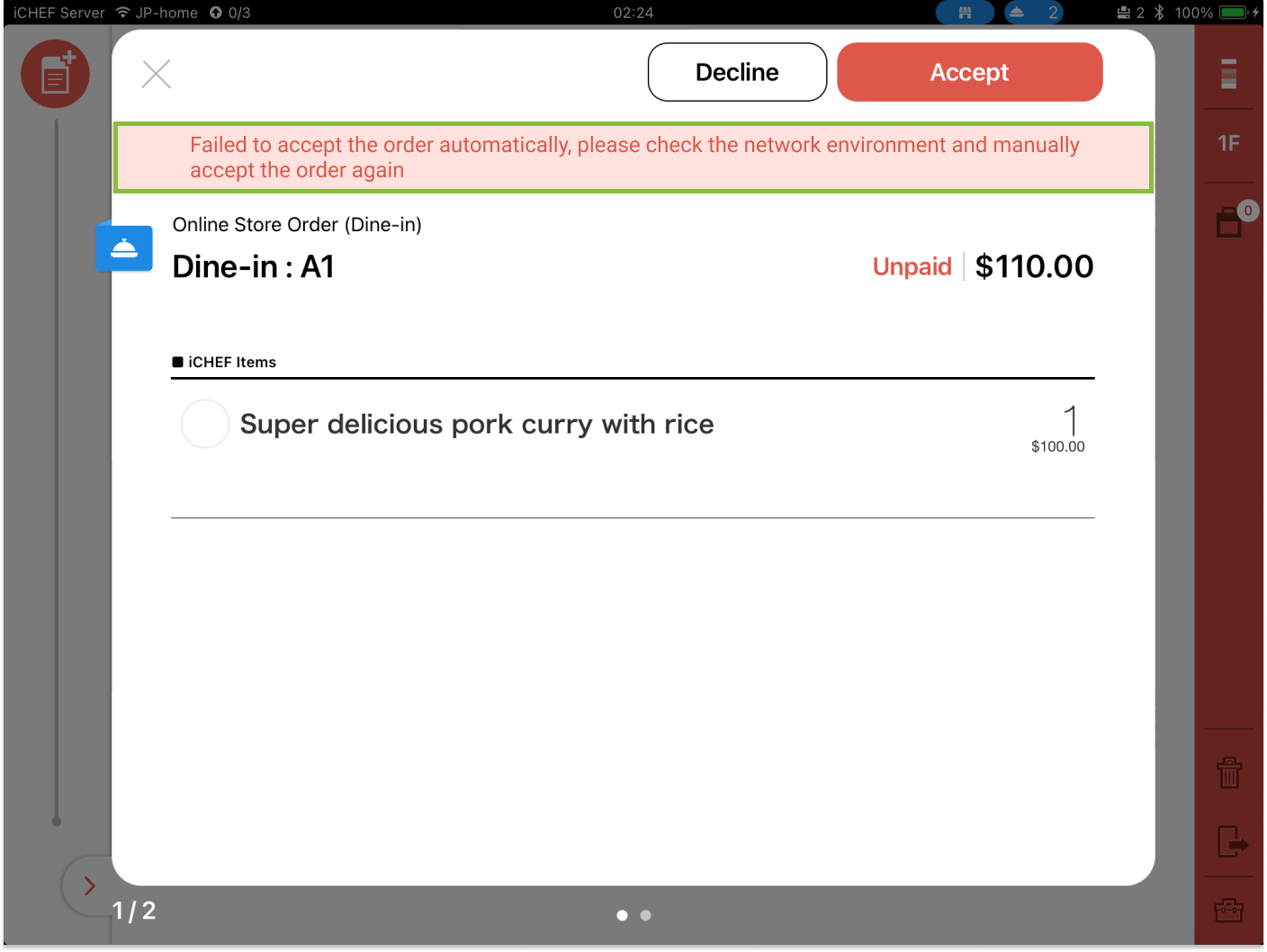
Reason
Disconnected to the internet or low connecting quality might lead to an accepting failure. Orders can’t be accepted if there’s no connection.
Solution
Check your internet connection and tap [Accept] to complete the order manually.
More than 1,000 Orders in Order Accepting Window
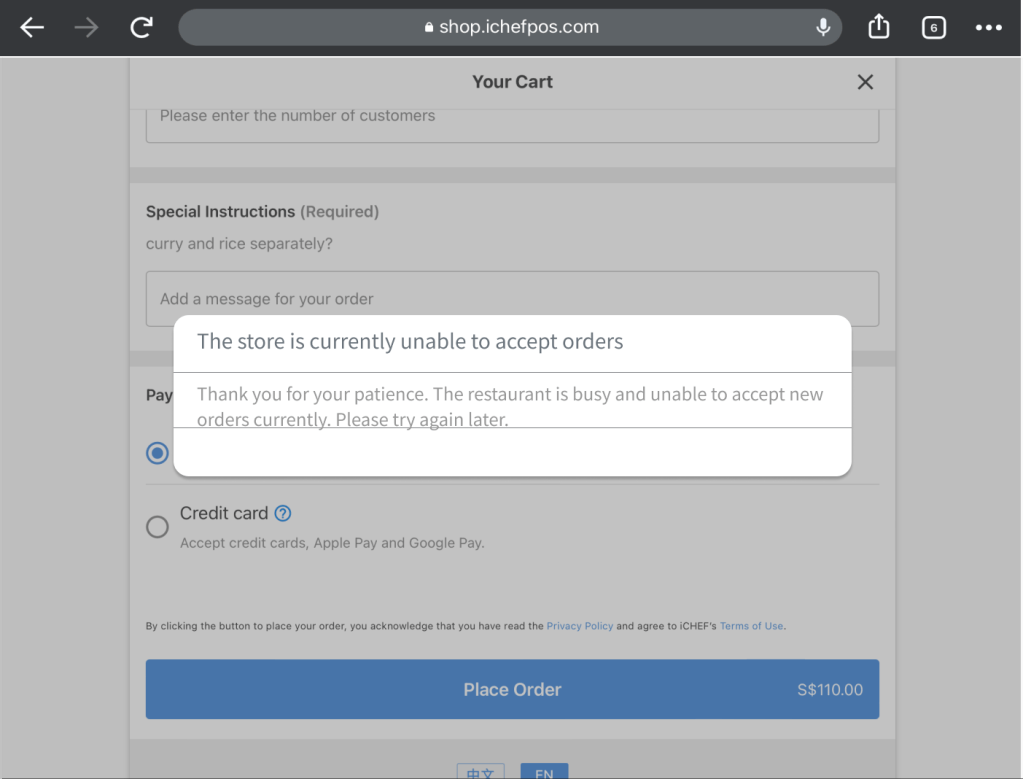
Reason
When there are more than 1,000 orders awaiting confirmation, your online store will not be able to take more orders. Customers will receive a decline message when placing an order.
Solution
Tap the [call bell] icon to open order accepting window. Accept or decline orders.