After the customers place order from the website, iCHEF POS App will notify you through push notification and sound reminder. Accepting orders on iPad, you can then have them sent to the kitchen and enjoy seamless order processing for your restaurant!


New Order Notifications
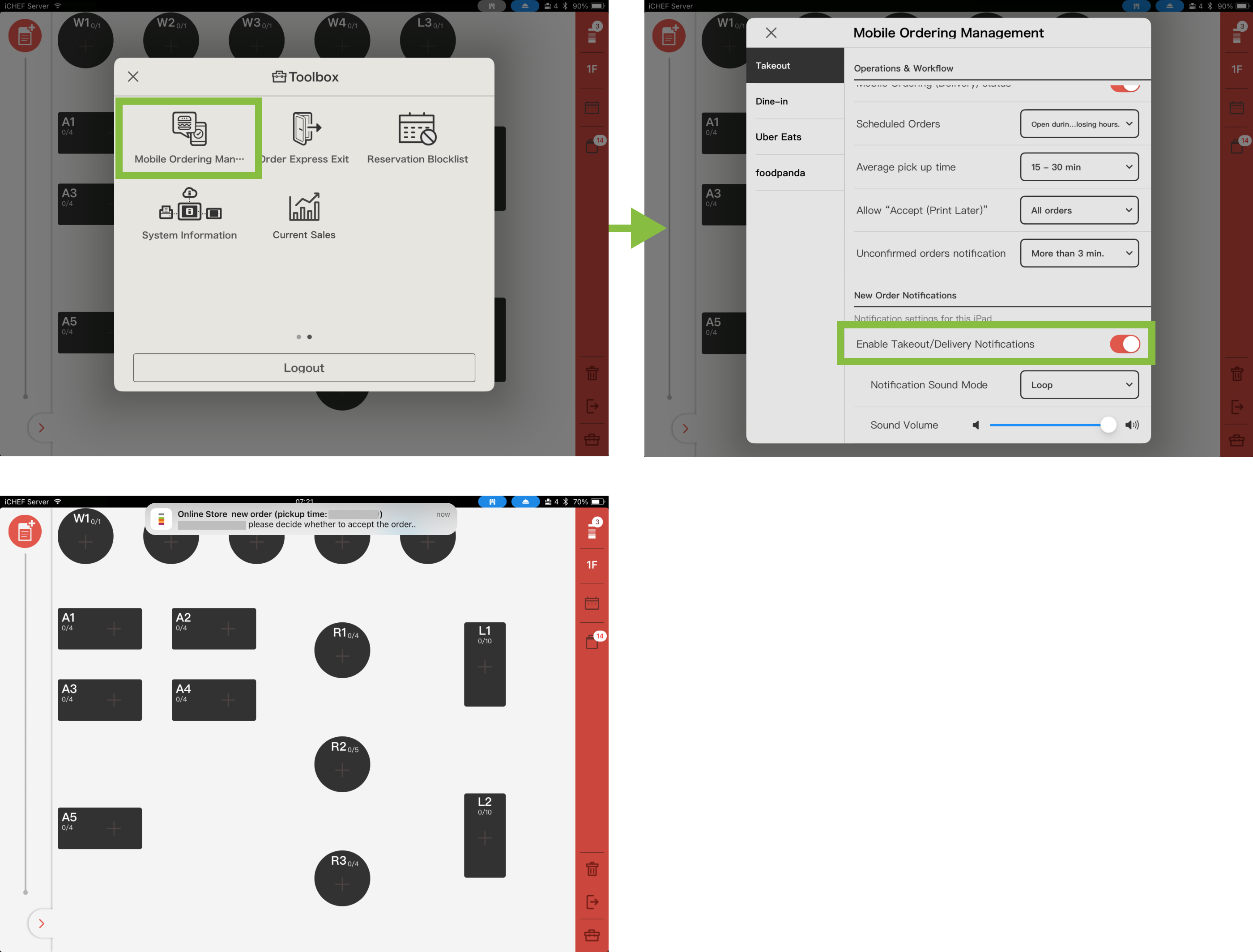
When customers place an online order through the [Online Store], iCHEF POS will notify you in two ways. Tapping the notification or icon will take you to the order acceptance window.
- Push Notifications for Specific iPads On each iPad: Push Notifications for Specific iPads On each iPad, you can turn notifications on and off and set the alert sound in [Toolbox > Mobile Ordering Management]. When an order is received, a push notification will pop up at the top.
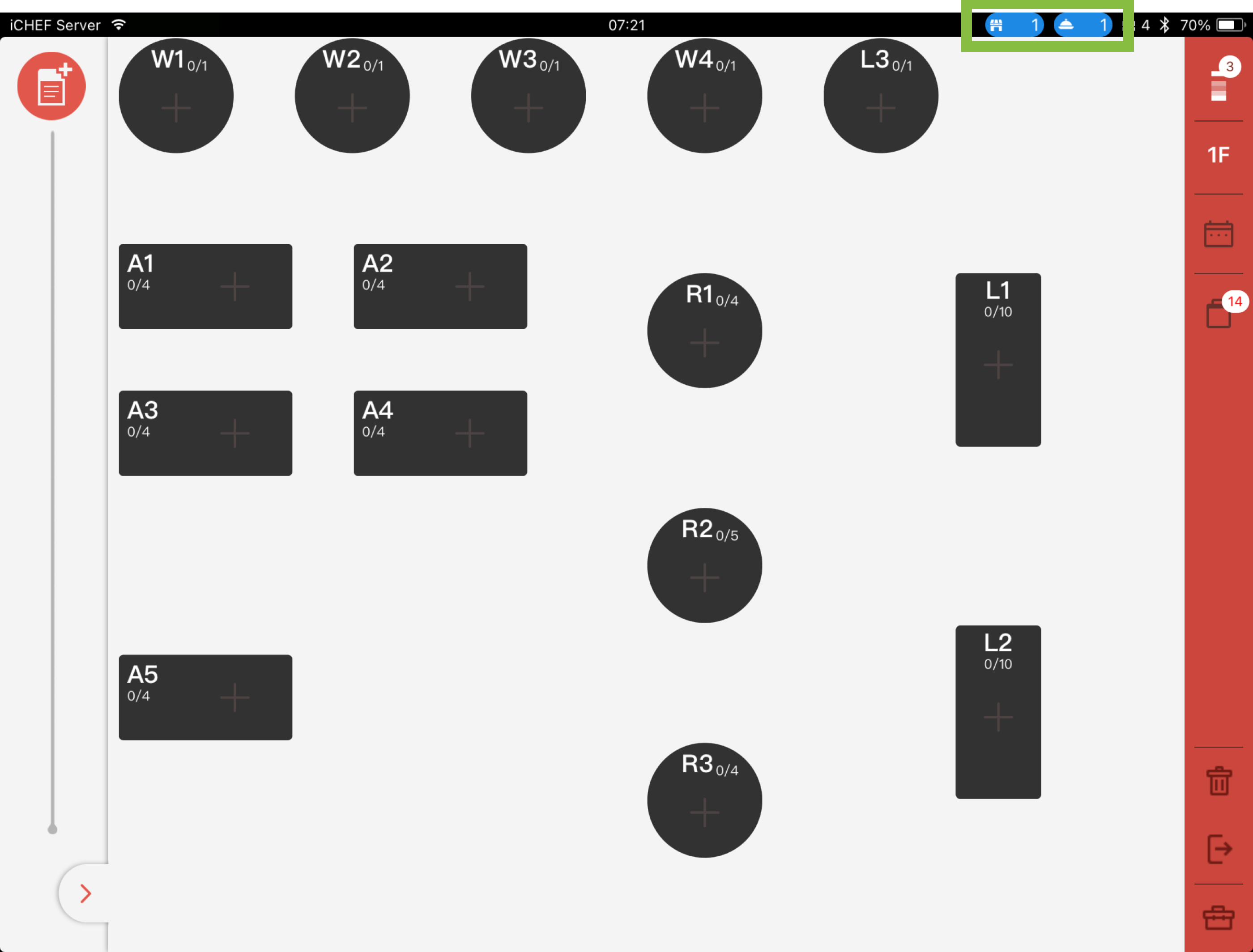
- View in Fixed Status Bar: Regardless of whether order notifications are turned on, all iPads in the store can view the current order acceptance status and the number of pending orders from the system status bar at the top of the iCHEF POS App.
- Blue: Mobile Ordering enabled.
- Gray: Mobile Ordering disabled.
- Number: The number of orders which are to be processed.
Accepting Orders
In the window for accepting orders, the orders will be sorted according to when they are placed. While you choose to accept or reject the order, the system will update the order status for customers to check. Accepted orders will be automatically added to the takeout list.

If you are unable to accept orders, please follow the instructions shown on the screen or refer to more detailed solutions.
Check payment status
If you have enabled the function of online payment, you can identify the payment status according to the color and symbol shown for the order.
- Paid: It shows blue and a coin.
- Unpaid: It shows green, and the customer can check out via one of the payment methods offered on iCHEF POS App.

Check Order Numbers
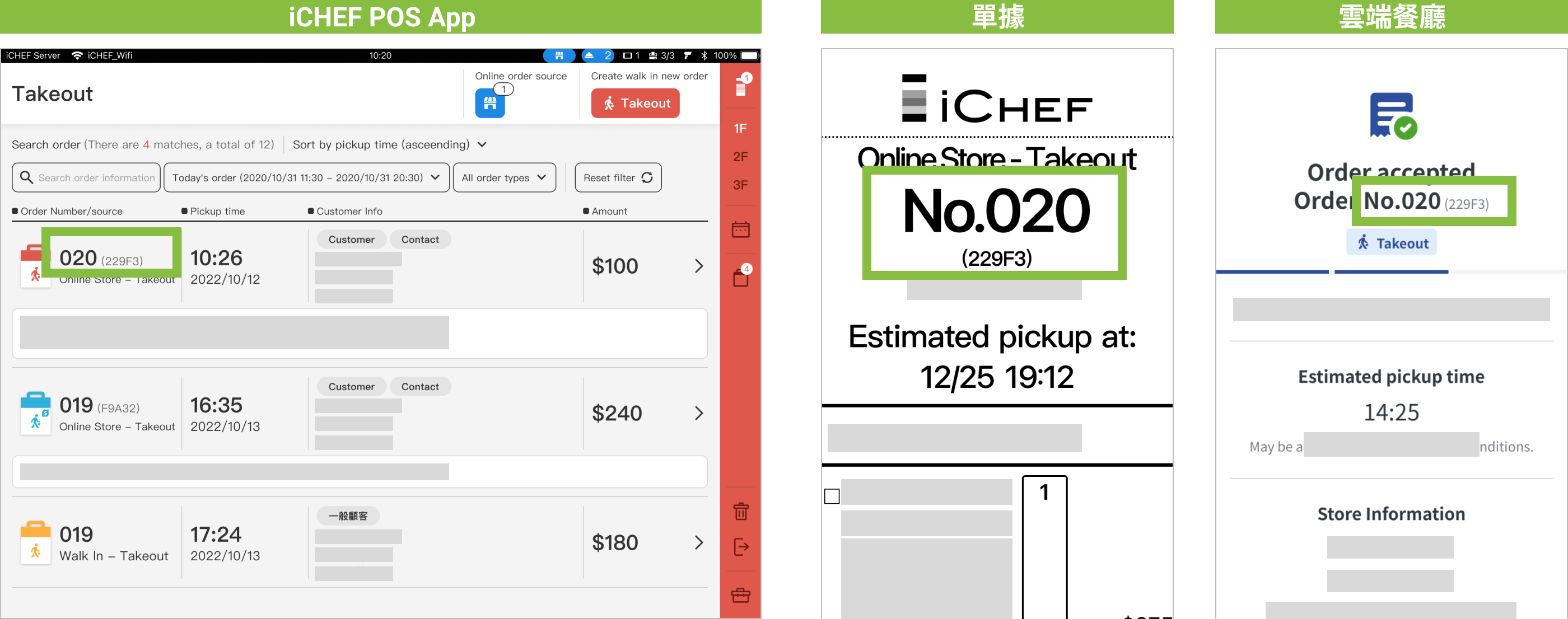
After the order is accepted, it will be marked with a three-digit serial number (numbered by acceptance sequence, e.g., 001 – 100) and a unique alphanumeric ID (randomly composed, e.g., 229F3).
In-store, you can view this on the [Takeout List] in the iCHEF POS App and on the printed [Receipt (Transaction Receipt, Guest Checks, Kitchen Tickets, Stickers)]; customers can view it on the order status page of the [Online Store].
Close Orders
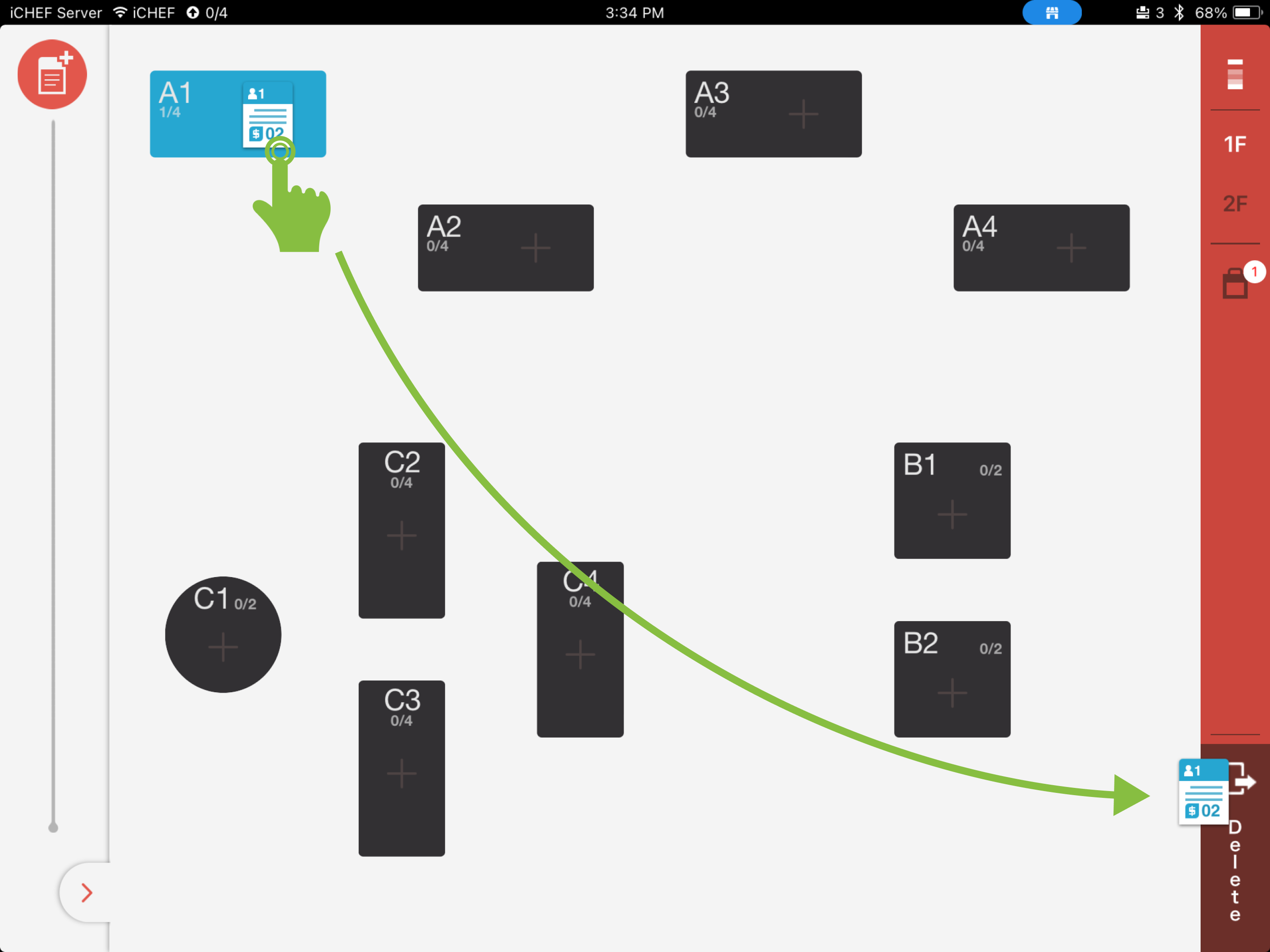
After the customers have finished dining and checked out, you can drag the order to close it.