Important Notes
- Supported Region: Taiwan
- To complete checkout and place orders, customers have to pay online.
- The delivery distance is based on the route suggested by Google Map. If you are partnering with delivery platforms (such as Lalamove or pandago), the distance may be different.
- 5. Delivery fee is calculated based on the rules chosen by Google Map according to the distance. If the actual delivery fee is higher due to weather or distance adjustment, etc., the system cannot adjust the payment amount as the orders have been paid. In this case, please ask customers to place orders again and void the original orders. Please also note that the payment of the original paid orders will be refunded to customers.
Start Delivery Service
Step 1: Locate store address
The delivery distance is based on the route suggested by Google Map. To enable Google Map to calculate distance, you have to complete this step.
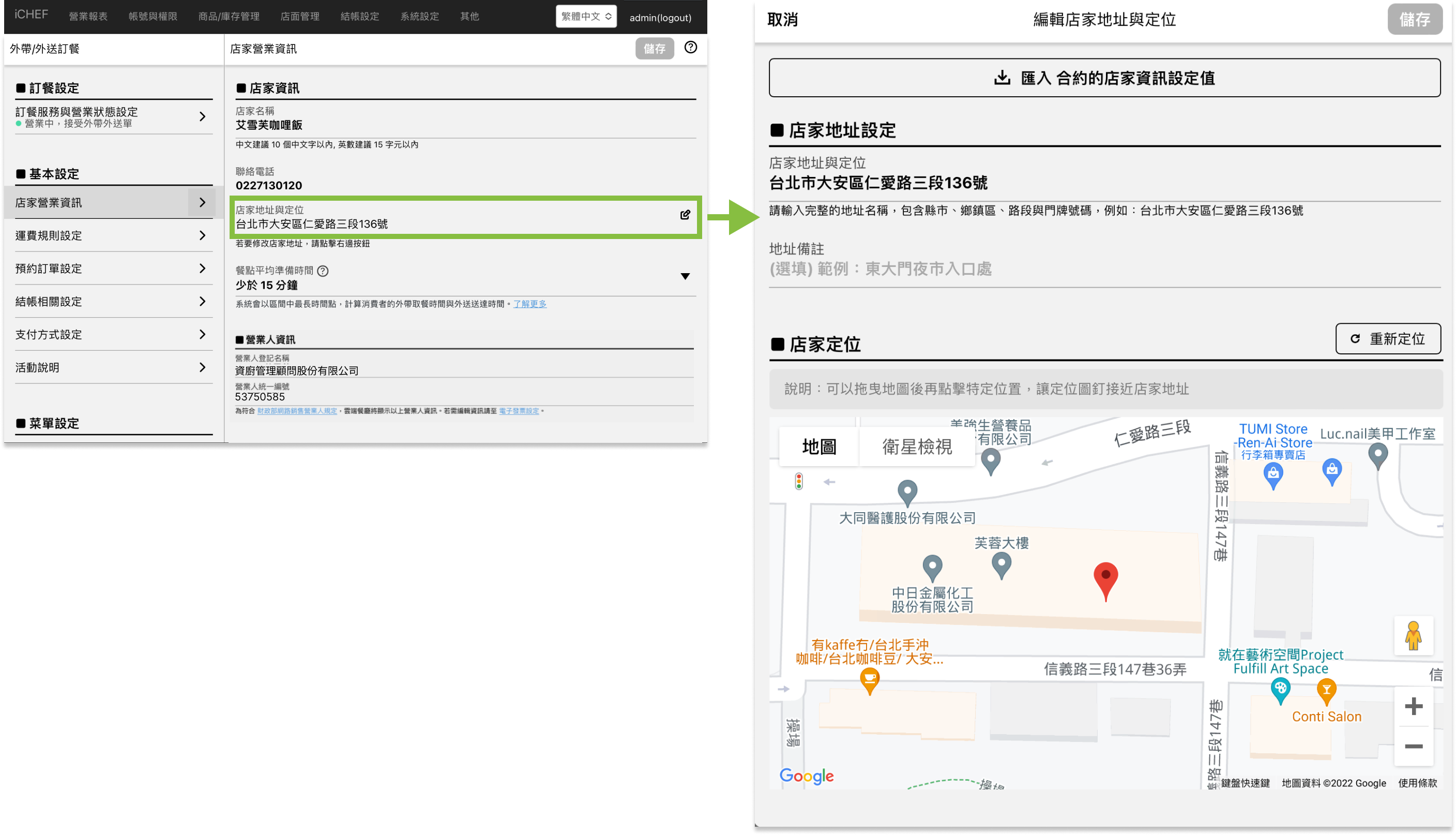
- Go to Online Store > Mobile Ordering (Takeout/Delivery) > Store Information
- Click the [pen] icon of the [Store Address and Location] column
- Enter store address
- Store Address and Location: Required to include city/county, road/street and house number
- Address Remarks: Enter any notable landmarks for delivery person to locate the store
- Click [Locate the Store Location] or [Reposition] and check if the pin marks the right location
- If where the pin marks on the map is different from actual location, you can drag the map and click on the store’s location to complete.

If the address you enter is not in the database of Google Maps, the system might be unable to locate the store. In this case, please enter the address with more detail (such as city/county, road/street, house number etc.)
Step 2: Set up delivery fee rules
The system will calculate deliver distance, and apply delivery fee according to the rules you set.
- Go to Online Store > Mobile Ordering (Takeout/Delivery)> Store Information
- Click [+ Add Delivery Rules]
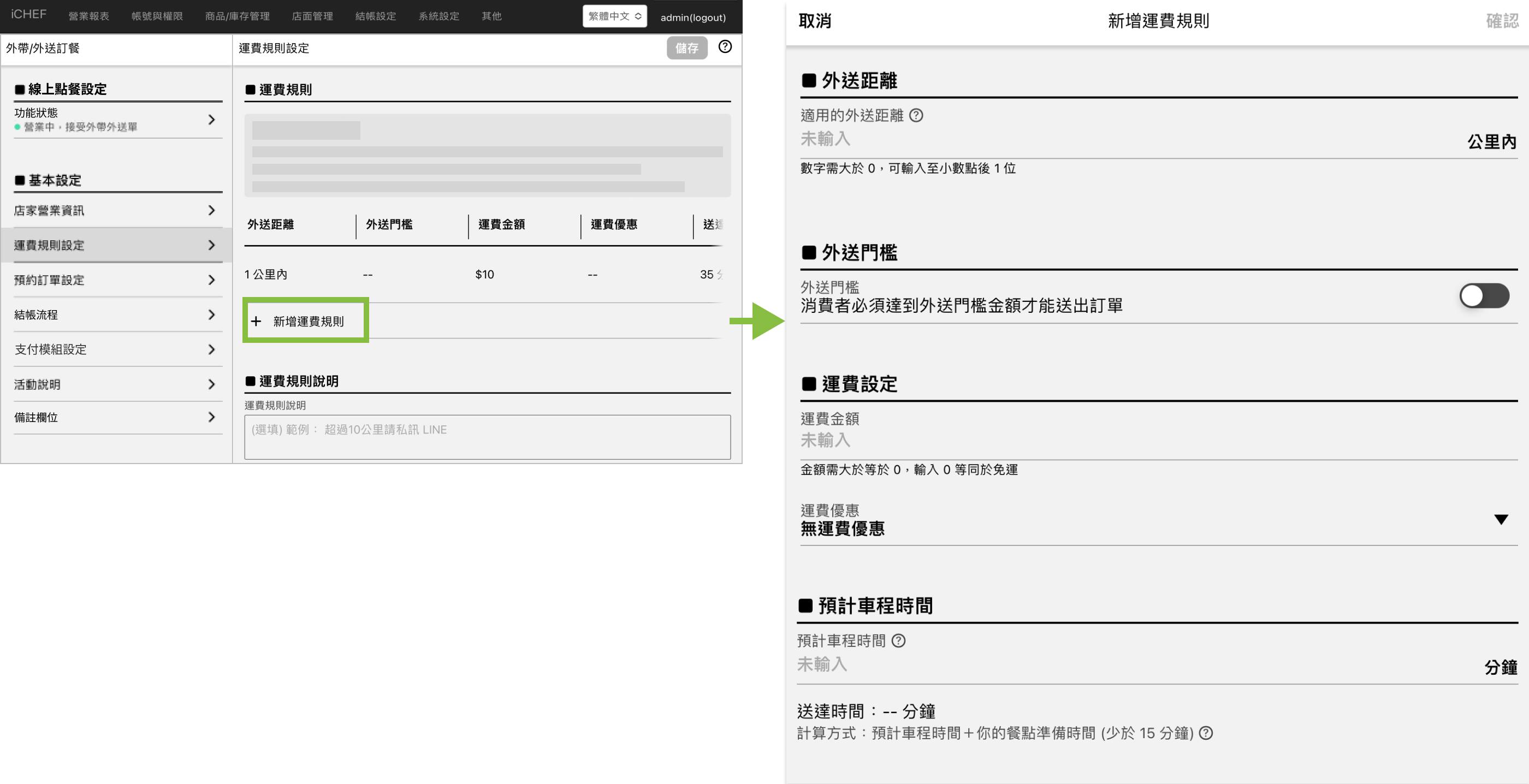
Delivery Distance
The system will calculate deliver distance, and apply delivery fee according to the rules you set.
| Column | Setting Example |
|---|---|
| First rule | Within 1 km |
| Second Rule | Within 2 km |
| Third rule | Within 3 km |
Situation & rule applied
- The delivery distance is calculated as 0.5 km, first rule will be applied.
- The delivery distance is calculated as 1.5 km, second rule will be applied.
- The delivery distance is calculated as 3.5 km, the customer will be unable to send the order and be notified that the distance is out of service.
Delivery Threshold
You can set up a minimum spend amount for each delivery rule.
- Toggle off: No delivery threshold.
- Toggle on:The order has to reach a minimum spend amount (after discount).
Delivery Fee Settings
The extra fee for delivery service. You can give a discount on delivery fee by selecting:
- No Delivery Fee Discount
- Free Delivery Fee if Order Reach Amount: Customer won’t be charged for delivery fee.
- Delivery Fee Discount if Order Reach Amount: A fix amount discount on delivery fee.
Estimated Drive Time
The time the order being sent + average pickup time (maximum) + estimated drive time. We suggest you include the time for matching delivery person when setting up the estimated drive time.
Delivery Fee Description
If there is any delivery fee rule for your store, you can specify it in this column.
- Go to Online Store > Mobile Ordering (Takeout/Delivery)> Store Information
- Enter your message in [Delivery Fee Description]

Step 3: Apply the settings
Log in iCHEF POS on iPad and tap [Update menu] to apply new settings.

Step 4: Select service type
Select a service type for your page and start taking online orders.
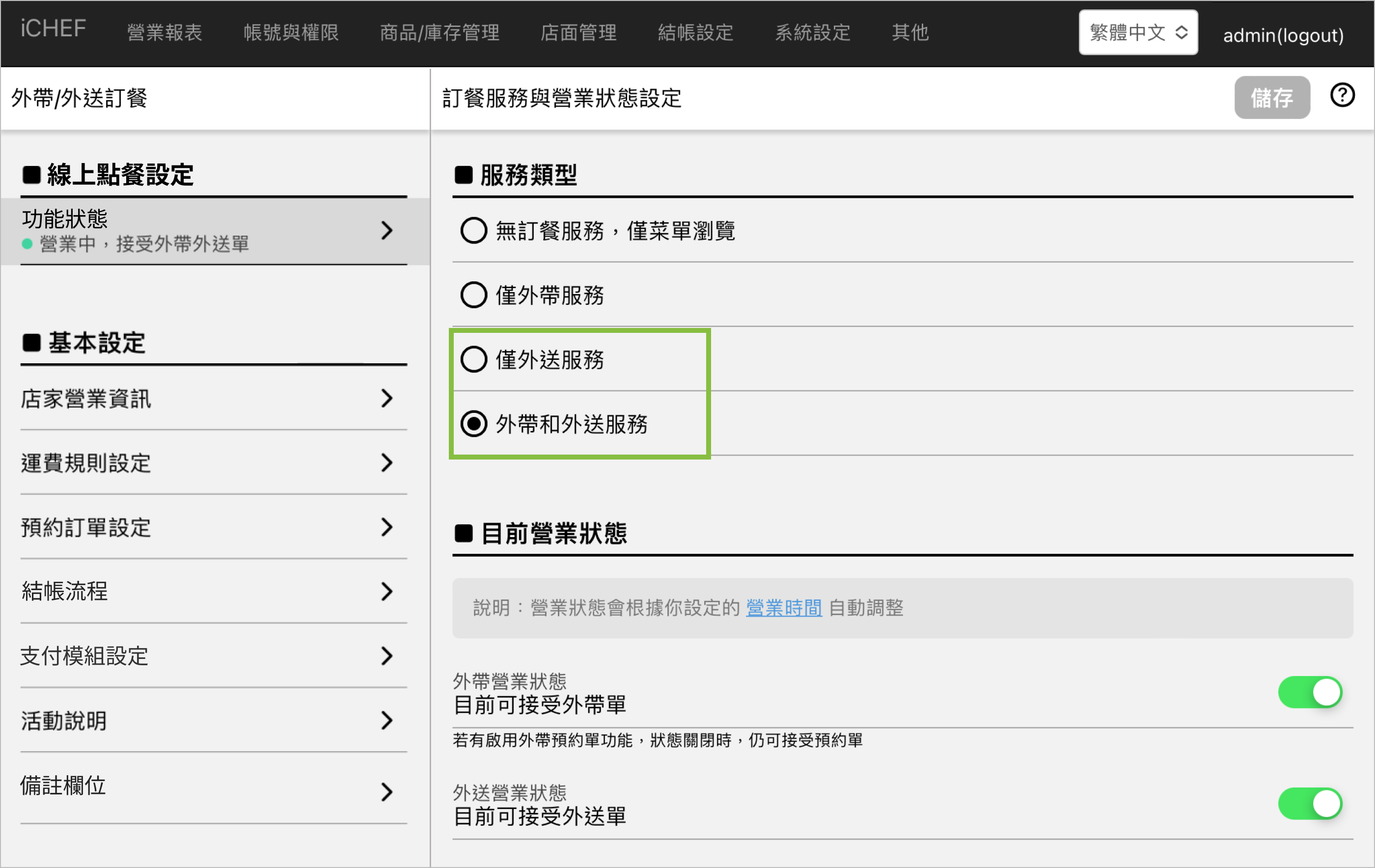
- Go to Online Store > Mobile Ordering (Takeout/Delivery) > Order Service and Business Status Settings
- Select a service type
Disable the ordering service temporarily
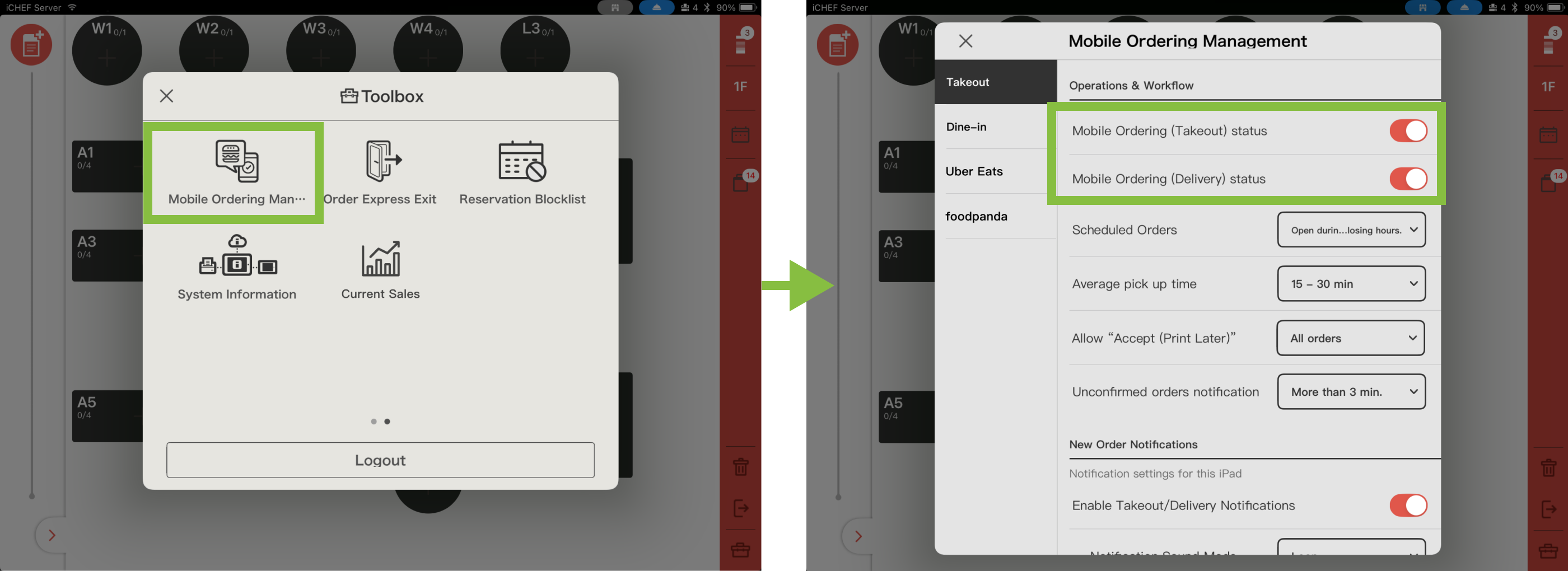
If you want to temporarily prevent consumers from selecting the delivery service, you can adjust the “Delivery Business Status” to “Closed.” When you want to reopen it, simply switch it back to “Open.” You can adjust this setting in both iCHEF POS and in the Online Store>Takeout/Delivery>Feature Status, and the settings will sync between both platforms.
- Go to Toolbox > Online Ordering Management
- Toggle off [Mobile Ordering (Delivery) Status]