Important Notes
- When you receive a paid order in Order Confirming Window, the payment amount is already added to your shift closing record. To prevent discrepancies, please confirm all the orders before closing a shift.
- When the order has been paid online, the invoice/receipt will be printed at the time of acceptance of the order, please keep the receipt and provide it when the consumer picks up the meal, if the customer chooses to pay when picking up the meal, the invoice/receipt will be printed on the day of checkout
Getting Started
Step 1: Enable scheduled takeout orders
Customer can place an order for a future time.
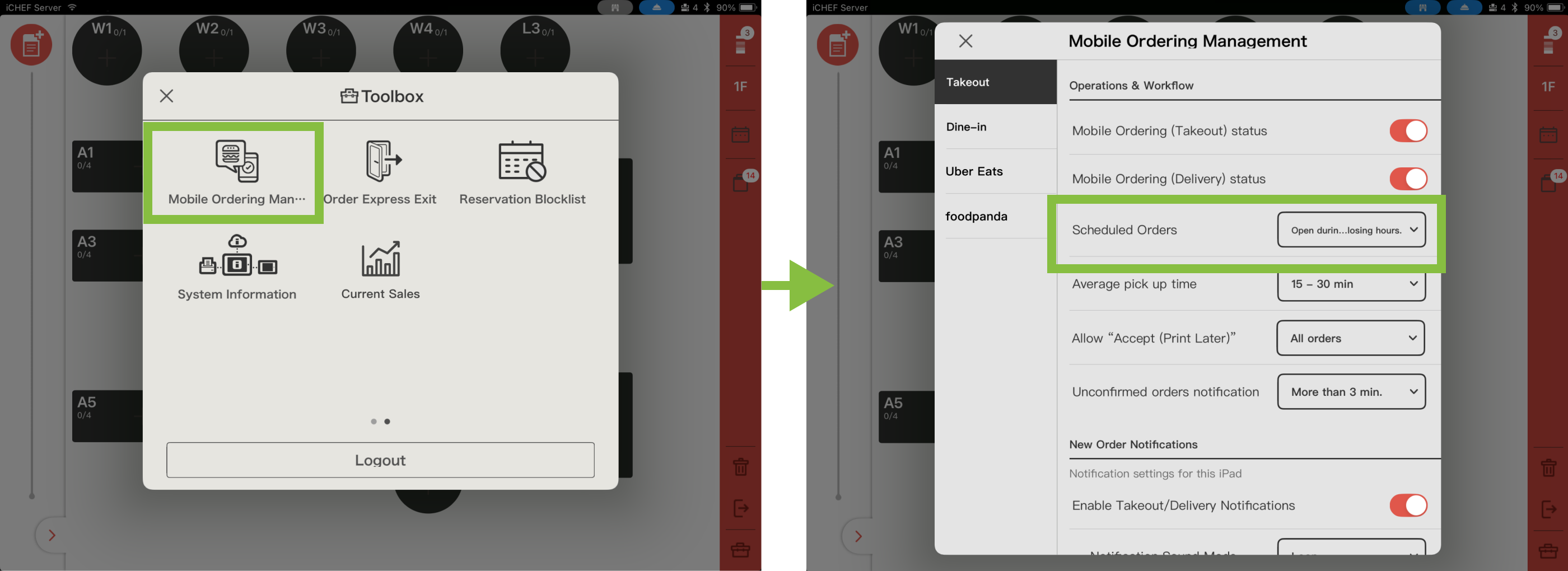
- Please go to Cloud Restaurant > Takeout/Delivery Ordering > to make a reservation
- Select when can customers place scheduled orders
- Consumers can only reserve orders during “business hours”
- Consumers can reserve orders during “open and close” hours

Step 2: Set up pick-up time range
Import your opening hours of online store can ensure that the pickup time available for customers is consistent with the opening hour.
- Please go to Cloud Restaurant > Takeout/Delivery Ordering > to make a reservation
- Click [Import Online Store opening hours]
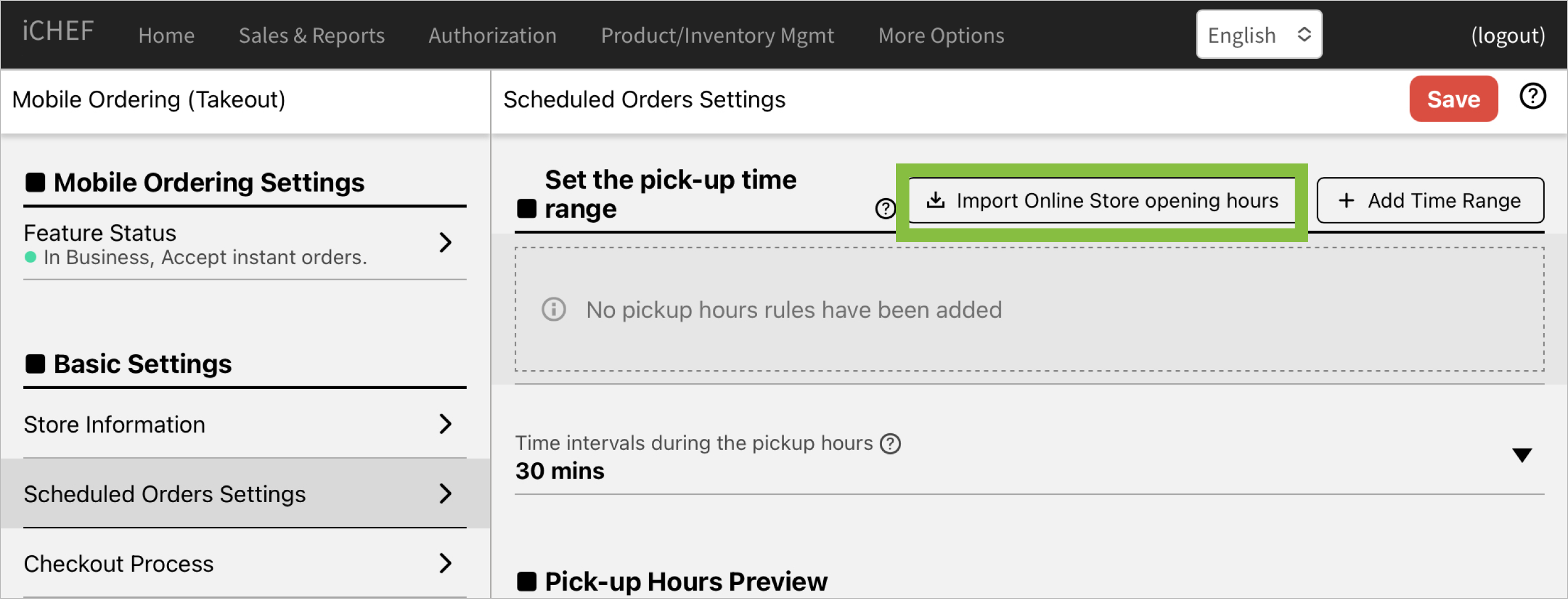
- Click the [pen] icon to edit
Edit pick-up time range

You can edit opening hours & select the day of the week.
Delete pick-up time range
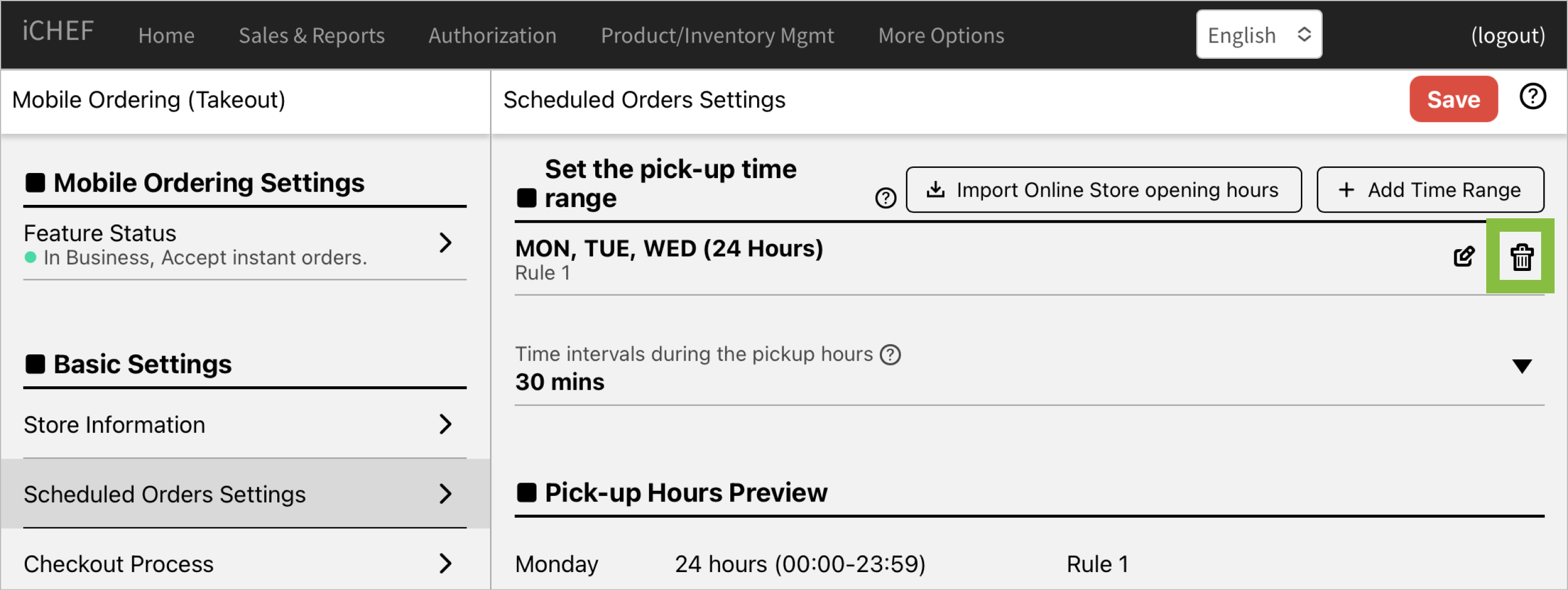
Click [bin] icon to delete pick-up time range.
Add time range
Set up pick-up time range without importing opening hours of online store.
- Please go to Cloud Restaurant > Takeout/Delivery Ordering > to make a reservation
- Click [+Add Time Range]
- Set Time Range
- Ⓐ All Day Pick-up/Delivery
- Toggle on: Customer can place order or pick up meal anytime.
- Toggle off: Set up pickup hours by your own.
- (B) Start Time/End Time
- Set up pickup hours.
- Ⓒ Select day of the week
- Customer can only schedule the order on the the day you set.
- Ⓐ All Day Pick-up/Delivery

To set an overnight hours, please add 2 rules to cover your pickup hours.
Here’s an example of pickup hours for 23:00-02:00 :
First time range
| Column | Example Settings |
|---|---|
| From | 23:00 |
| To | 23:59 |
| Day of the week | Monday |
Second time range
| Column | Example Settings |
|---|---|
| From | 00:00 |
| To | 02:00 |
| Day of the week | Tuesday |
Time Intervals During The Pickup Hours
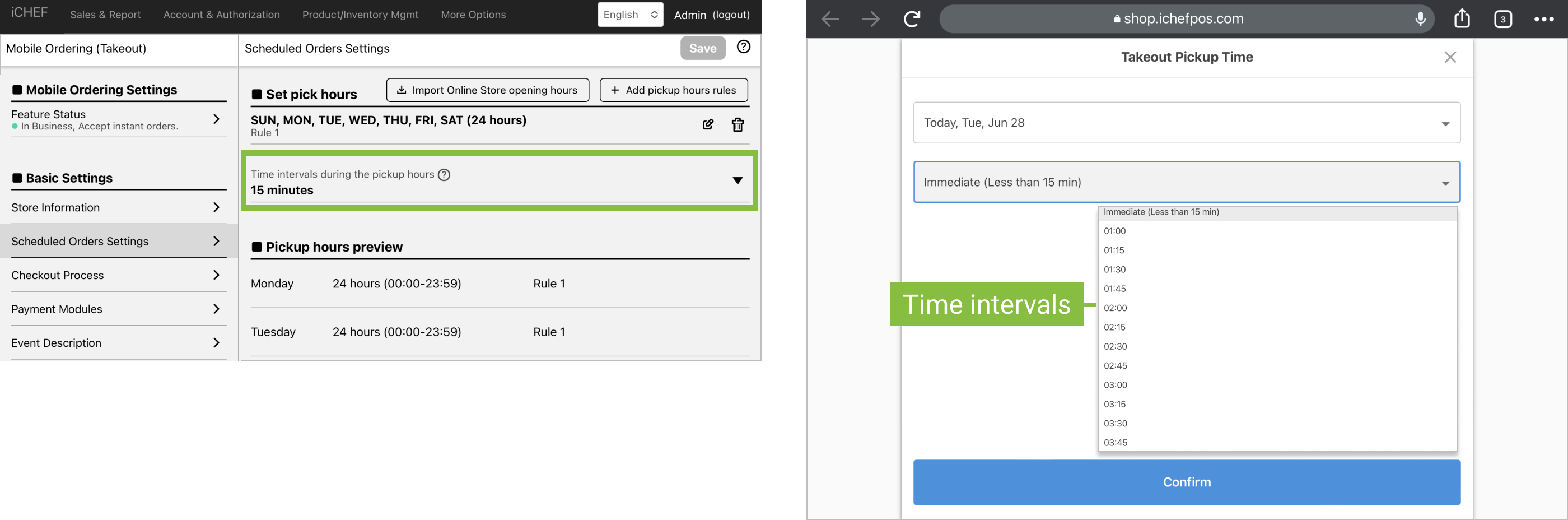
A fixed number of minutes between time options when the customer selects a pick-up/delivery time.
- Please go to Cloud Restaurant > Takeout/Delivery Ordering > to make a reservation
- Select the intervals
Maximum Number of Days for Scheduled Orders
When scheduling an order, the system will calculate the available dates according to maximum number of pickup days you have set up.
- Please go to Cloud Restaurant > Takeout/Delivery Ordering > to make a reservation
- Enter [Maximum number of days consumers can reserve]
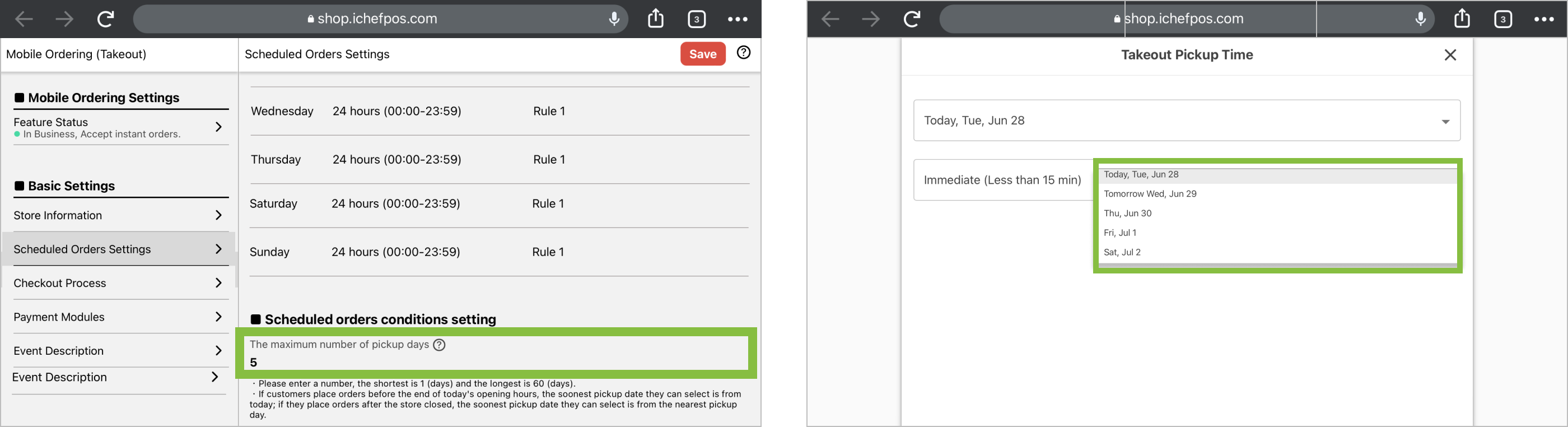
You can enter from 1 to 60 days. It is based on available pickup days you set.
Situation 1: Customer places an order within or earlier than pickup hours.
| Column | Setting Example |
|---|---|
| Opening hours for online store | Monday – Friday 12:00-18:00 |
| Pick-up hours | Monday – Wednesday 12:00-15:00 |
| Maximum Number of Days for Scheduled Orders | 3 days |
Situation & rule applied
Shoppers who complete their purchase at 09:00 or 14:00 on Monday can choose to pick up their order on Monday (showing the pick-up time as soon as possible and the pick-up time available on the same day), Tuesday and Wednesday.
Situation 2: Customer places an order within opening hours but later than pickup hours.
| Column | Setting Example |
|---|---|
| Opening hours for online store | Monday – Friday 12:00-18:00 |
| Pick-up hours | Monday – Wednesday 12:00-15:00 |
| Maximum Number of Days for Scheduled Orders | 3 days |
Situation & rule applied
Shoppers who purchase products at 17:00 on Monday can choose from Monday (show Pick up as soon as possible), Tuesday and Wednesday.
Situation 3: Customer places an order later than opening hours.
| Column | Setting Example |
|---|---|
| Opening hours for online store | Monday – Friday 12:00-18:00 |
| Pick-up hours | Monday – Wednesday 12:00-15:00 |
| Maximum Number of Days for Scheduled Orders | 3 days |
Situation & rule applied
Shoppers who complete their purchase at 20:00 on Monday will be able to pick up their order on Tuesday, Wednesday and the following Monday.
Step 3: Apply the settings
Log in iCHEF POS on iPad and tap [Update menu] to apply new settings.

Disable the ordering service temporarily
In addition to adjusting the switch in iCHEF POS, you can also temporarily turn off the function of ordering takeaway/delivery > orders in cloud restaurants>, and the setting status on both sides will be adjusted synchronously.
- Go to Toolbox > Online Ordering Management
- Toggle off [Mobile Ordering (Delivery) Status]