
If this is your first time using the iCHEF E-Invoice feature, please first complete the serial number assignment for E-Invoices. Then, go to the iCHEF backend to [Enable E-Invoices] and complete the related settings, and you can start issuing E-Invoices through iCHEF POS.
➤ Backend Path: Payment Settings > E-Invoice Settings> Invoicing Settings
Step 1: E-Invoice Status
Change the [E-Invoice Status] to [Enabled].
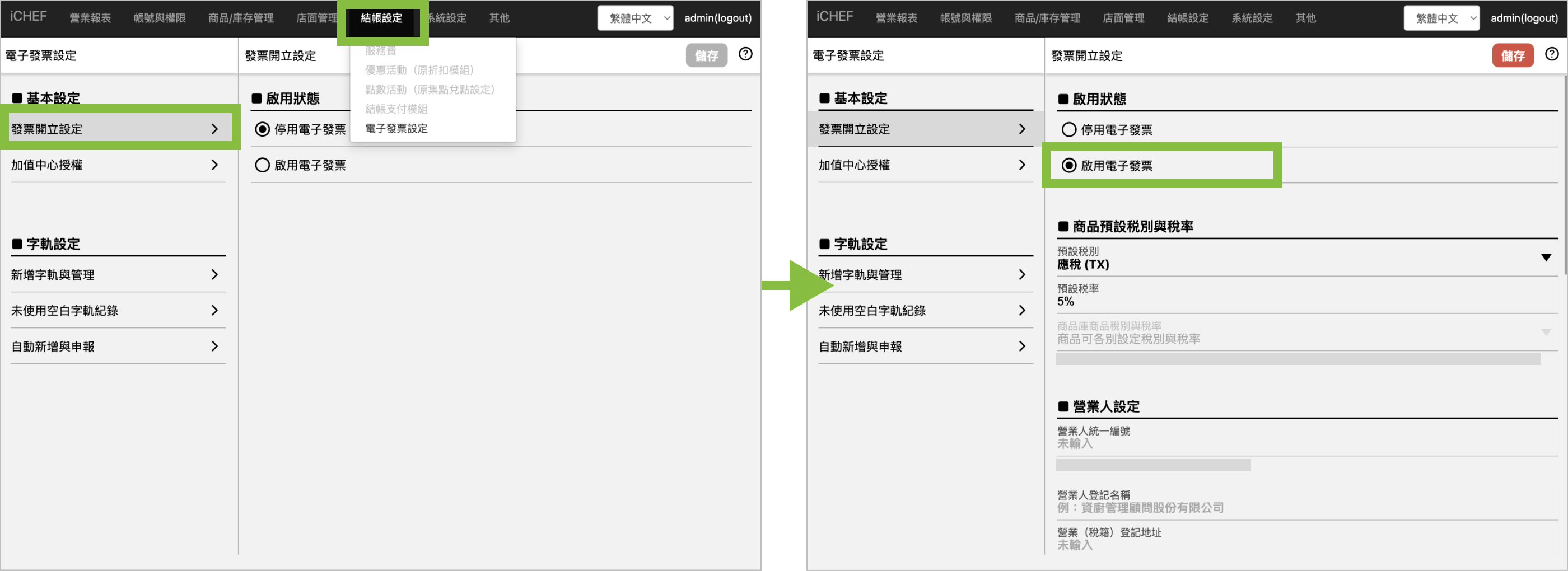
Step 2: Default Tax Type and Rate
iCHEF defaults the item tax category and rate to All Items Taxable (TX) 5%. If adjustments are needed, it is recommended to first confirm the available tax categories and rates with your accounting firm. Please note that if iCHEF’s assistance is required to adjust the tax category of issued invoices due to incorrect settings, a NT$3,000 e-invoice adjustment service fee will be charged.

- In [Default Tax Type and Rate], change [Product tax type and tax rate] to [Can individually set tax types and tax rates of menu item].

- Then, go to [Product/Inventory Mgmt > Item Management], select the item, and tap [Edit].
- Change [Product tax and tax rate] to [Custom tax rate].

As required by the VAT law, a sales reason is needed at checkout for zero-rated orders to issue an invoice.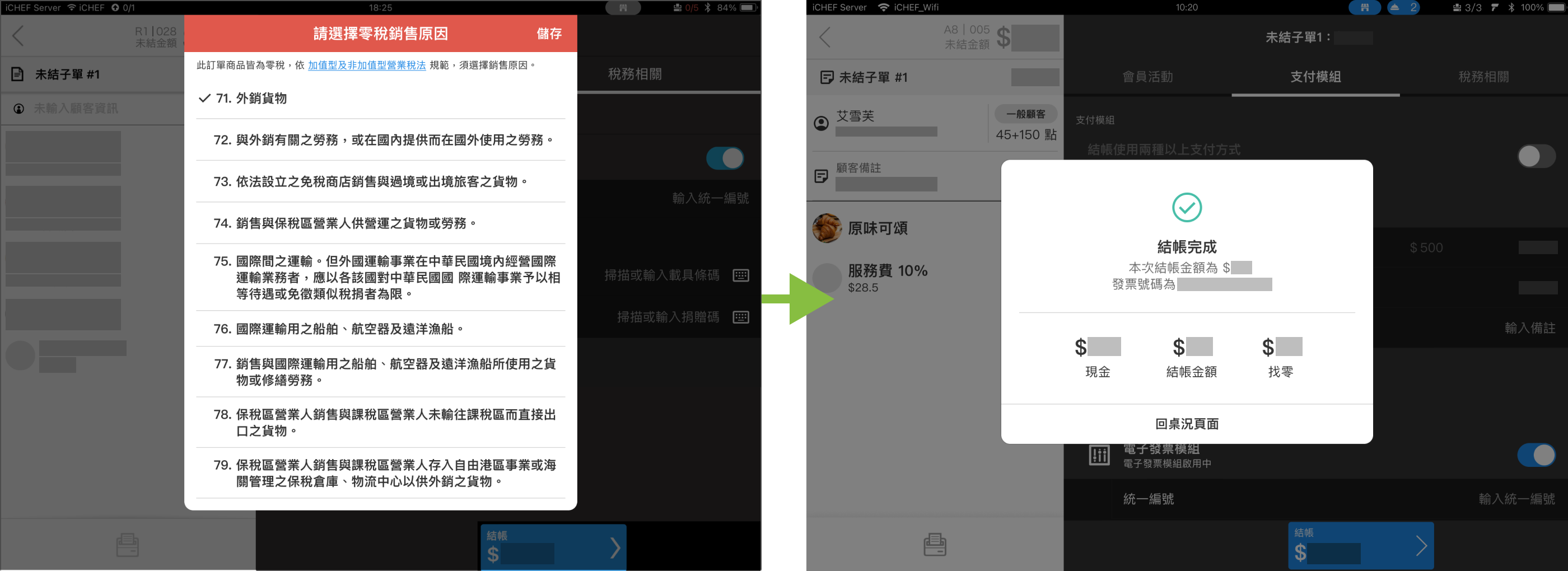
Step 3: Seller Settings
Please fill in the business entity’s uniform serial number, registered name, and and registered address (tax registration address) with the store’s tax registration information.

The business entity’s registered name is the [store name] registered with the Ministry of Economic Affairs, not the person in charge’s name.
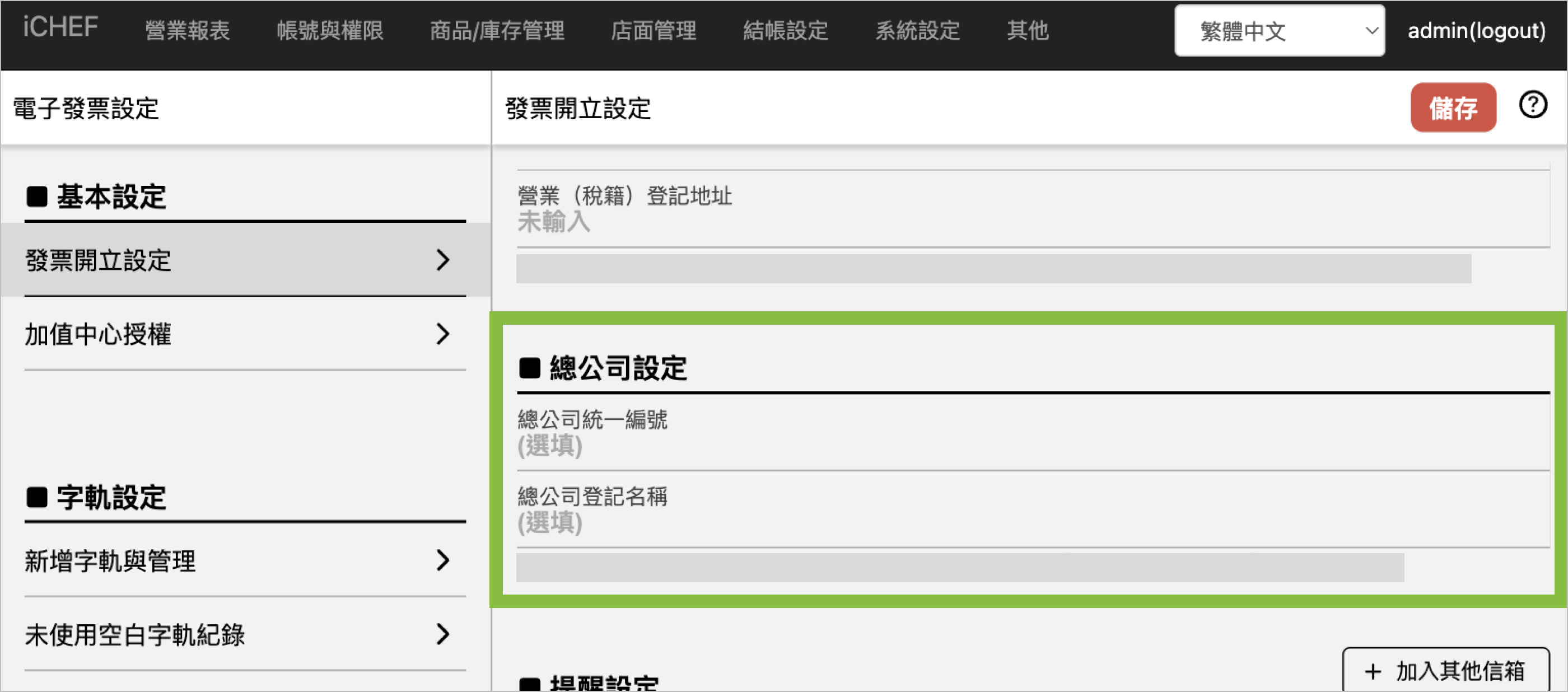
Step 4: Headquarter Settings (Optional)
If the store’s e-invoice serial numbers are centrally distributed by the Ministry of Finance to the headquarters, and then allocated to its branches, please fill in the headquarters’ uniform serial number and registered name in the [Headquarter Settings] field. If this is not the case, this field does not need to be filled in.
Step 5: Notification Settings
iCHEF will send important e-invoice tax-related reminders. Please set at least 1 (up to 10) email addresses to receive relevant notifications.

- Add Serial Numbers for the Next Period
iCHEF checks from the 24th to the 30th of every even-numbered month. If the store has not yet imported the serial numbers for the next period at the time of the check, a reminder will be sent via email. Please download the serial numbers from the e-invoice service platform and import them into iCHEF as soon as you receive the notification. - Tax Filing for the Previous Period
From the 1st to the 10th of every odd-numbered month, iCHEF will send a reminder via email to remind you about tax filing. Please upload unused blank serial numbers before the 10th and complete the media filing download and submission before the 15th. - Insufficient Serial Number Inventory
Every 15 days after the start of each tax period, iCHEF will automatically estimate whether the remaining e-invoice serial numbers are sufficient based on sales. If the number falls below a safe value, a reminder will be sent. Please apply for serial numbers with the tax authority and import them into the iCHEF backend as soon as possible.
Step 6: Advanced Settings
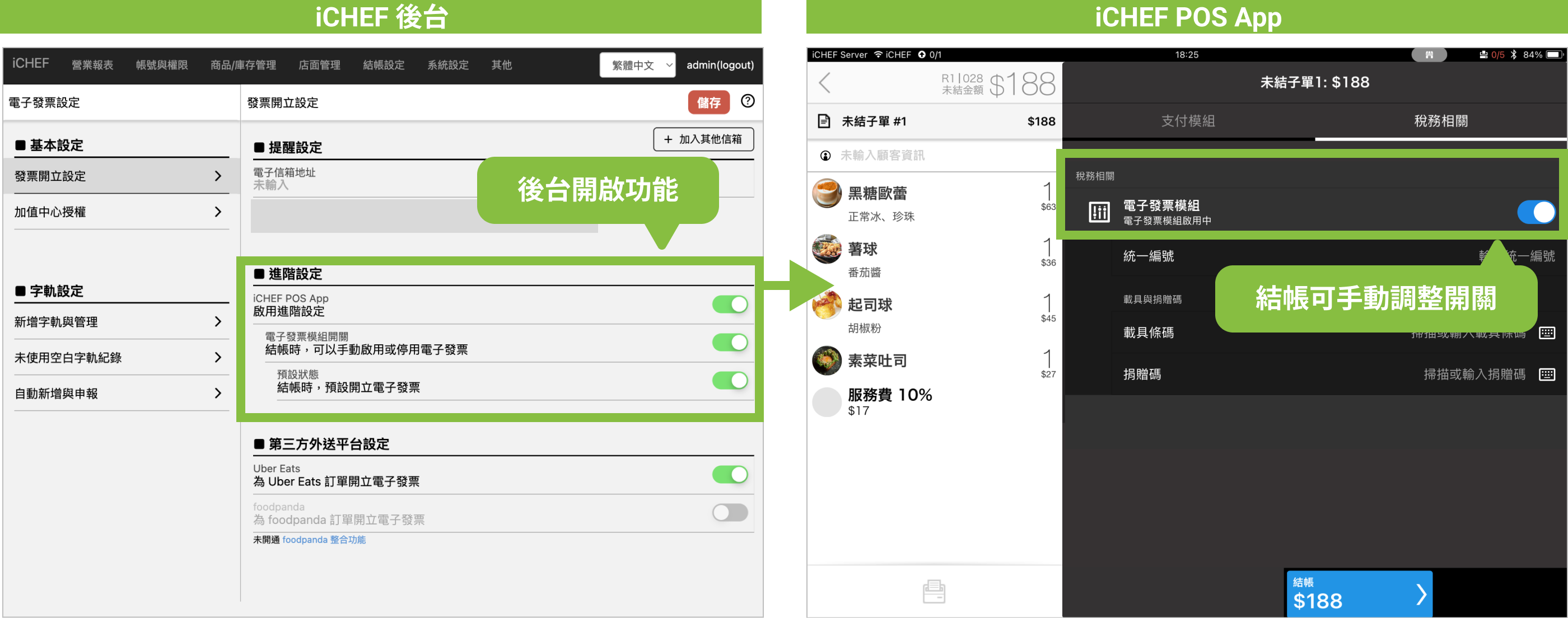
This switch allows on-site staff to decide whether to issue an e-invoice for [unclosed orders] from dine-in, takeout, and online channels when checking out through iCHEF POS.
To allow on-site staff to manually enable or disable e-invoices, please turn on [[iCHEF POS App Advanced Settings] and the [E-invoice Module Switch]. The switch function will then appear during checkout.
Step 7: Third-party Delivery Platform Settings
For stores that issue Taiwan E-Invoices, upon completing the Uber Eats or foodpanda integration, iCHEF defaults to [automatically enabling the E-Invoice feature for delivery orders] which will automatically issue meal invoices through iCHEF for the store to provide to customers. Stores can turn this feature on or off in the backend at any time based on their operational needs.

Once enabled, when the store accepts Uber Eats/foodpanda orders on iCHEF POS, the system will issue an invoice based on the carrier barcode, business registration number, and donation code provided by the consumer on the delivery platform.